
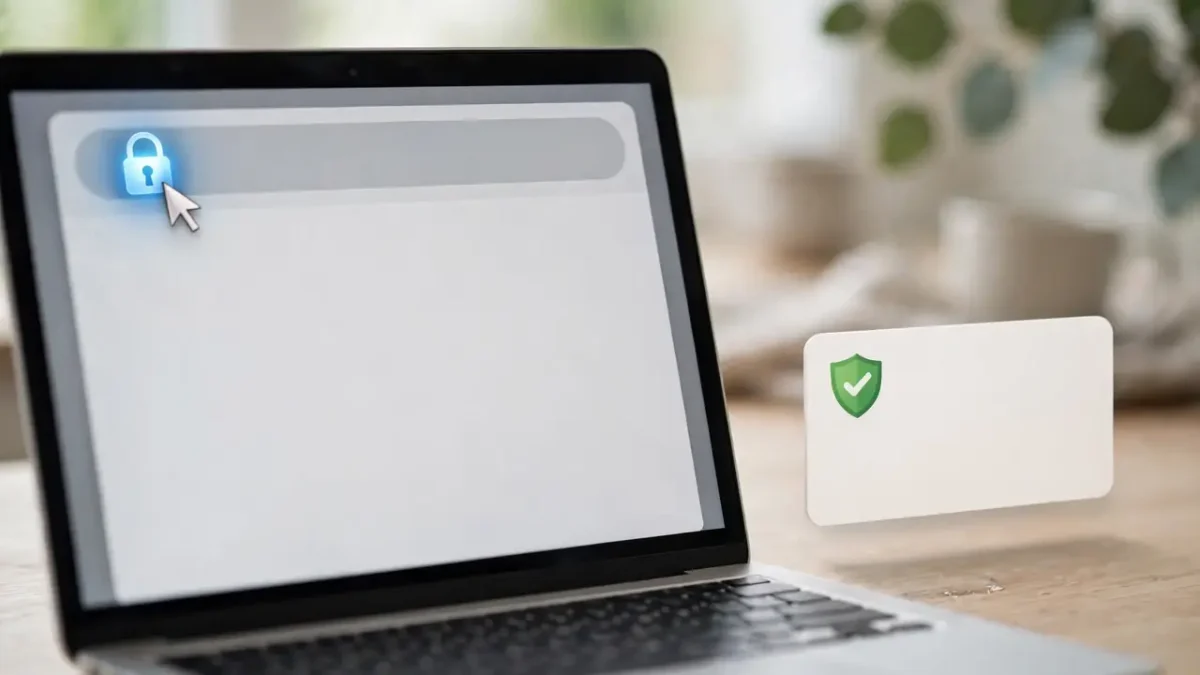
That little padlock in your browser’s address bar is making a promise: your connection to this website is encrypted and the site is who it claims to be. But most people never click it, and fewer still know how to tell a healthy certificate from a broken or suspicious one. Learning to check takes about five minutes the first time and thirty seconds every time after — and it is one of the most practical security skills a non-technical person can have.
This guide walks you through verifying any website’s SSL certificate step by step, using only your browser and one free online tool. No software to install, no technical background needed. By the end you will be able to confirm a certificate is valid, spot the common warning signs, and know exactly what to do when something looks wrong. If you are a site owner rather than a visitor, this beginner’s guide to website security and SSL certificates covers the other side of the story.
What you will need
- A modern browser — Chrome, Edge, Firefox, or Safari all work (steps differ slightly between them)
- The website address you want to check, typed or pasted by you — not clicked from a suspicious message
- About five minutes for your first check; under a minute once it becomes habit
- Optional: a free online SSL checker for the deeper verification in step 7
Ready? Here is the sequence.
- Look at the padlock in the address bar. Open the website and glance left of the address bar. A closed padlock (or “Connection is secure” indicator) means the site has an SSL certificate and your connection is encrypted. If you see “Not secure” or a broken padlock instead, stop here — never enter passwords, card details, or personal information on such a page. This first glance filters out the most basic problem in two seconds.
- Open the certificate details. Click the padlock, then look for an option like “Connection is secure” followed by “Certificate is valid” (Chrome and Edge) or the padlock details panel (Firefox and Safari). Clicking through opens the actual certificate — a small document containing the site’s identity details. It looks technical at first glance, but you only need to read four fields, which the next steps cover.
- Confirm the domain name matches. Find the “Issued to” or “Subject” field and check that the domain listed matches the site you are visiting — exactly. Scam sites often use lookalike domains, and the certificate will honestly show that lookalike name. If you meant to visit your bank but the certificate was issued to a slightly misspelled domain, you are not where you think you are. This single check defeats an enormous number of phishing pages.
- Check the validity dates. Every certificate shows “Valid from” and “Valid to” dates. Confirm that today falls between them. Expired certificates trigger browser warnings for a reason — they suggest the site is unmaintained, which is itself a risk signal. Note that legitimate certificates are typically valid for about a year, so a certificate valid for many years into the future is unusual (though not automatically bad), and one expiring tomorrow on a major site is worth a raised eyebrow.
- Identify who issued the certificate. Look for the “Issued by” field, which names the Certificate Authority (CA) — the organization that verified the site. You will see names like Let’s Encrypt, DigiCert, Sectigo, or Google Trust Services. A recognized CA is a good sign; a certificate issued by an unfamiliar name, or one marked as self-signed (issued by the site itself), deserves caution. Browsers trust a specific list of CAs, and anything outside it will usually trigger a warning anyway.
- Glance at the certificate chain. In the certificate viewer, look for a certification path or chain tab showing the hierarchy from the site’s certificate up through intermediate certificates to a root authority. A healthy chain shows two or three unbroken levels. You do not need to understand the cryptography — you are just confirming the chain exists and shows no errors or broken links. A broken chain is one of the things that triggers those “your connection is not private” warnings.
- Run a free online SSL checker for the full picture. For sites where the stakes are high — your bank, a store you are about to pay — paste the domain into a free tool like the SSL Labs Server Test. It grades the server’s entire encryption setup from A to F. You only need the headline grade: A or B means the configuration is healthy; C or below suggests outdated or weak encryption worth being cautious about. This takes under a minute and catches server-side problems your browser’s padlock cannot show you.
- Know what to do when something looks wrong. If any check fails — mismatched domain, expired certificate, unknown issuer, or a browser warning — do not click through “just this once.” Close the tab. If you arrived via a link, navigate to the site yourself by typing the address you know. If it is a site you must use (your bank, say), call their official support number to confirm the correct address. And if a warning appears on a site that worked fine yesterday, treat it as a possible attack in progress, not a glitch to bypass. For links that arrived through messages, also run this verification routine for suspicious messages and links before proceeding.
Common mistakes to avoid
The most dangerous mistake is treating the padlock as proof of legitimacy — it proves encryption, not honesty, and scam sites have valid certificates too. Second, do not click past browser certificate warnings; they exist precisely for the situations where your own checks might fail. Third, avoid checking certificates only once: a site can change hands or let its certificate lapse, so re-check anything important periodically. Fourth, do not confuse the certificate with the website’s content — a valid certificate on a page full of spelling errors and pressure tactics is still a page to distrust. And finally, never “verify” a site by clicking a link in the same suspicious message that brought you there — always navigate independently. These habits matter beyond certificates too; this rundown of common online scams shows what attackers do after the technical checks pass.
Your quick certificate checklist
- Padlock shows a secure connection — no “Not secure” label
- Certificate’s “Issued to” domain matches the site exactly
- Today’s date falls within the validity period
- Issued by a recognized Certificate Authority, not self-signed
- Certificate chain shows no breaks or errors
- Online checker grade is A or B for high-stakes sites
- You arrived at the site yourself, not through an unverified link
Five minutes of learning, thirty seconds of habit — that is the whole investment. Make certificate checks part of your routine before money or sensitive data changes hands, and pair the habit with broader awareness from this beginner’s guide to staying safe from online scams.


One Comment